 Oh-My-Note
第一弹:避免布局抖动
什么是布局抖动
所谓布局抖动,指的是连续不断的回流会让浏览器一直处于 layout 的阶段,其结果是让页面变得非常卡顿。
这里有个布局抖动的示例—— 点击 Forced synchronous layout ,再点击Start 按钮即可查看到布局抖动的影响结果。
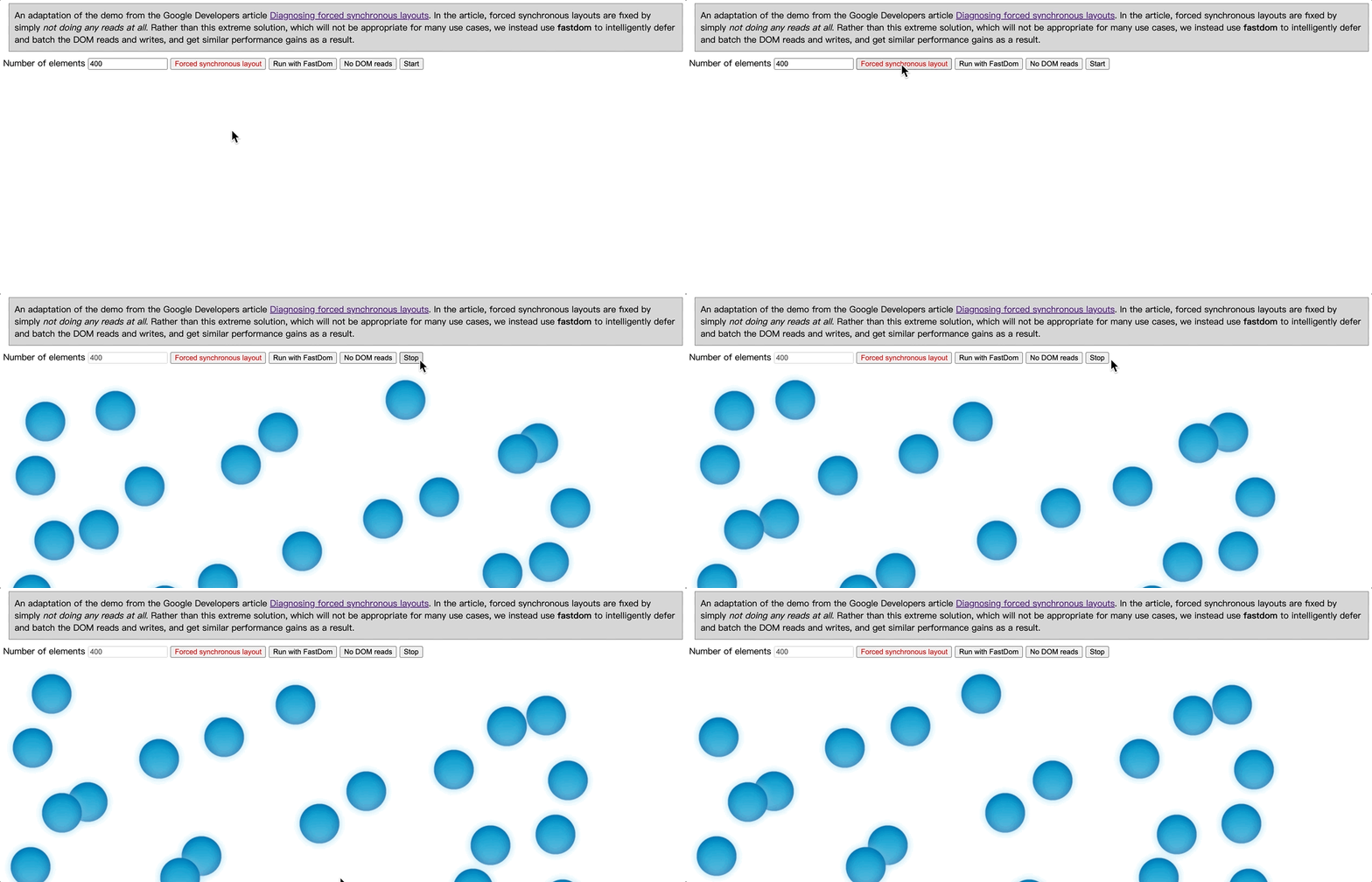
布局抖动英文名为 layout thrashing,回流的英文名为 reflow。
布局抖动涉及到浏览器的渲染过程—— 关键渲染路径。
解释关键渲染路径,有两篇文章值得一看:
- MDN-渲染页面:浏览器的工作原理
- 关键渲染路径 —— 笔者对渲染过程的扩展整理版
我们分析一下为什么会产生抖动。
核心代码如下:
js1var mover = {
2  sync: function (m) {
3    // Read the top offset, and use that for the left position
4    mover.setLeft(movers[m], movers[m].offsetTop)
5  },
6  async: function (m) {
7    // Use fastdom to batch the reads
8    // and writes with exactly the same
9    // code as the 'sync' routine
10    fastdom.measure(function () {
11      var top = movers[m].offsetTop
12      fastdom.mutate(function () {
13        mover.setLeft(movers[m], top)
14      })
15    })
16  },
17  noread: function (m) {
18    // Simply use the array index
19    // as the top value, so no DOM
20    // read is required
21    mover.setLeft(movers[m], m)
22  },
23  setLeft: function (mover, top) {
24    mover.style.transform = 'translateX( ' + (Math.sin(top + timestamp / 1000) + 1) * 500 + 'px)'
25  },
26}
27
28function update(thisTimestamp) {
29  timestamp = thisTimestamp
30  for (var m = 0; m < movers.length; m++) {
31    mover[moveMethod](m)
32  }
33  raf = window.requestAnimationFrame(update)
34}
源码解读:
- 当点击
Start按钮时,会执行window.requestAnimationFrame函数。这个函数会调用update方法,并且内部一直调用它。 update内部调用mover[moveMethod]方法,默认moveMethod为sync,调用mover.sync的方法,这个方法里就一行执行函数:mover.setLeft(movers[m], movers[m].offsetTop);mover.setLeft就是简单的修改transform属性
核心思想解读:
- 这个例子中的
mover.sync、mover.async、mover.noread之间的区别在于读取offsetTop几何属性的方式。其中sync是直接读,async是通过fastDom去异步调度读,noread就是不读取 - 为了削减其他产生回流的因素对例子的影响,例子中用来做平移动画的属性是
transform,——这个属性不会产生回流 - 这个例子证明了直接读取几何属性是会产生回流抖动的。
如何避免布局抖动
通过上面的示例,我们已经能体会到在代码中直接读取几何属性,是一种编码陷阱,它会导致浏览器的布局抖动。
要避免布局抖动,有两个代码层面的方法:
- 避免回流 —— 尽量避免写产生回流的代码,这里列举了影响回流的操作
- 读写分离 —— 当读取几何属性(offsetXxx 等)时,浏览器会马上执行一次 layout 操作,频繁的读写必然导致布局抖动。
避免回流很简单,我们只需要注意少做影响回流的操作即可。
读写分离指的是什么?
读写分离就是对所有【读】几何属性的操作和所有让元素产生回流的【写】操作进行调度,让它们各自一起完成。
fastDom就是简化读写分离的库。
使用方式是很简单:
js1fastdom.measure(function () {
2  var top = movers[m].offsetTop
3  fastdom.mutate(function () {
4    mover.setLeft(movers[m], top)
5  })
6})
只需要将读的操作放在 fastdom.measure里,写的操作放在fastdom.mutate里即可。
直接读写和使用 fastDom 读写的对比
这里用 chrome 提供的 FPS 测量工具对比一下两种代码结构下的页面 fps 性能。
打开 devTools 工具,按快捷键 command+shift+p 后搜索 frame,找到 Show frame per second(FPS) meter 即可打开 FPS 测量工具
直接读写的 fps 值
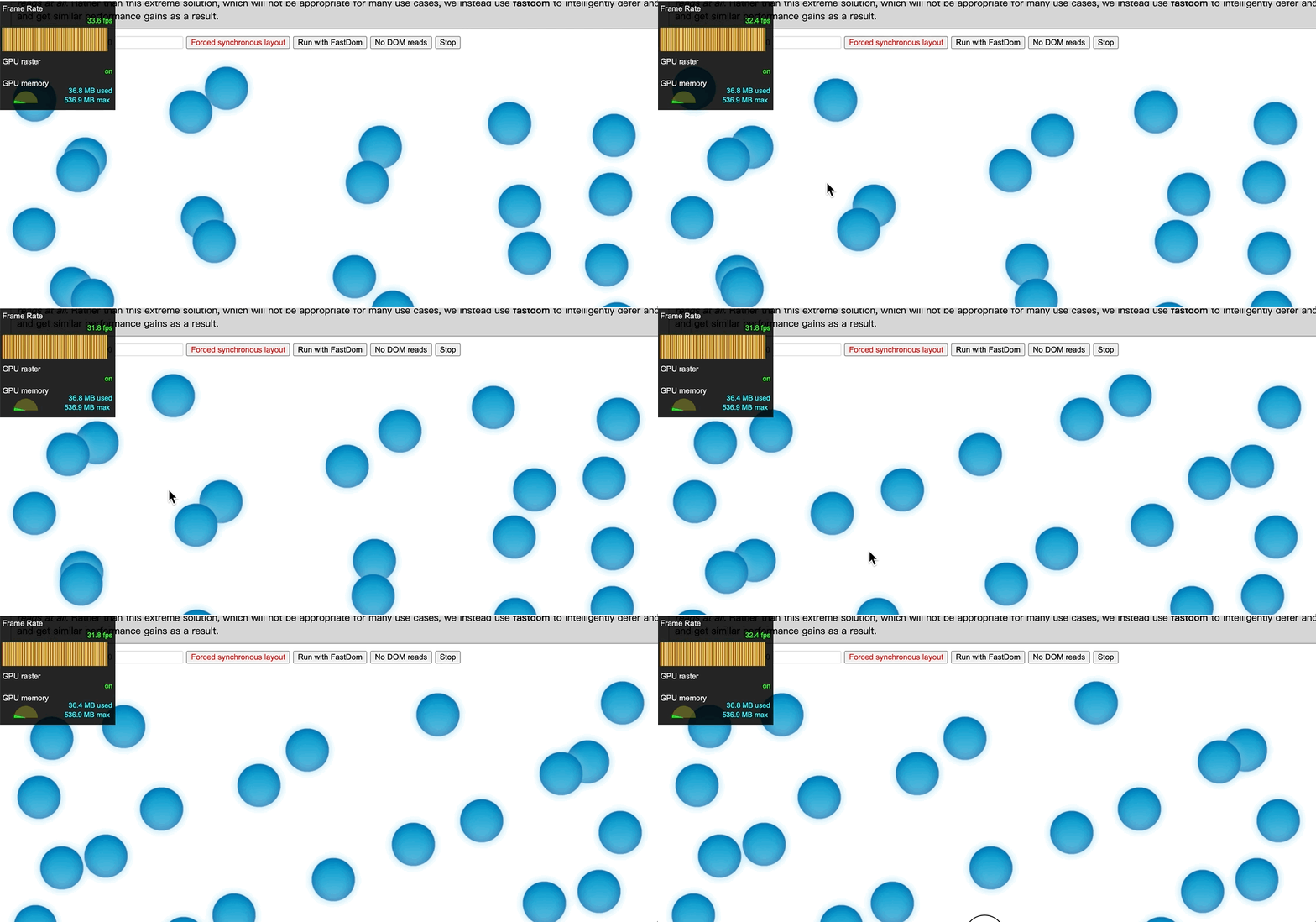
fps 大概在 31-35 之间,小球滑动表现较为卡顿
使用 fastDom 后的 fps 值
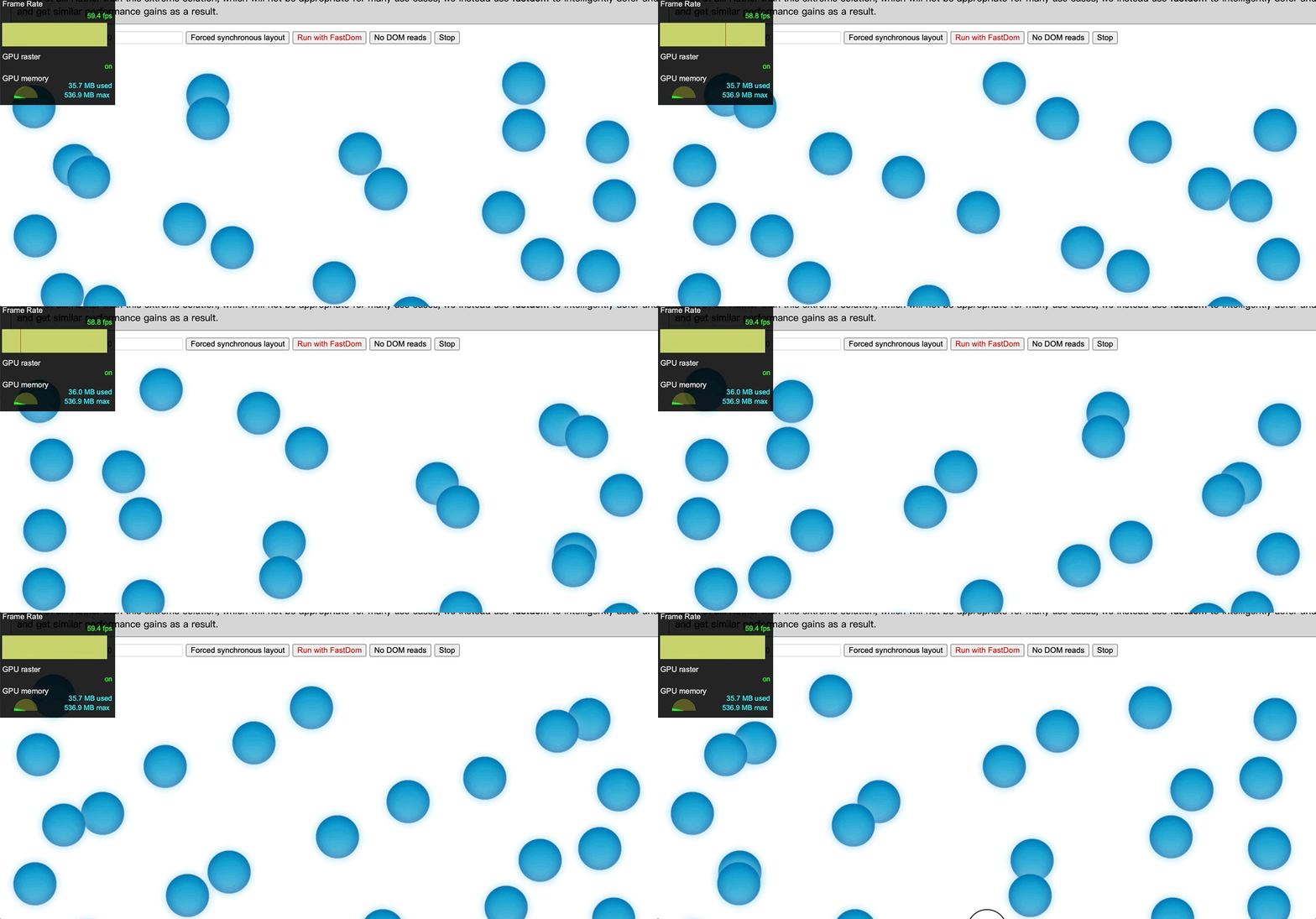
fps 在 60 左右,小球滑动表现较为平滑